

Set up SFML with CodeBlocks step by step tutorial
Download SFML – GCC 4.7.1 TDM (SJLJ) – 32-bit:
http://www.sfml-dev.org/download/sfml/2.3/


Extract archive and move SFML-2.3 folder to C:\


Download Codeblocks – codeblocks-13.12mingw-setup.exe:
http://www.codeblocks.org/downloads/26

Install CodeBlocks and go to Settings/Compiler/Reset defaults

Create new Empty project in CodeBlocks:


For this tutorial name of the project will be “Project”.


Open Project Built Options

Click on your project name “Project” .

In Project/Linker settings/Link libraries click on “Add” and add “sfml-graphics”, “sfml-window” and “sfml-system”.

In Project/Search directories/Compiler click on Add and add “C:\SFML-2.3\include”.

In Project/Search directories/Linker add “C:\SFML-2.3\lib”.

Go to Debug:

In Debug/Linker settings/Link libraries click on “Add” and add “sfml-graphics”, “sfml-window” and “sfml-system”.

In Debug/Search directories/Compiler add “C:\SFML-2.3\include”.

In Debug/Search directories/Linker add “C:\SFML-2.3\lib”.

Go to Release:
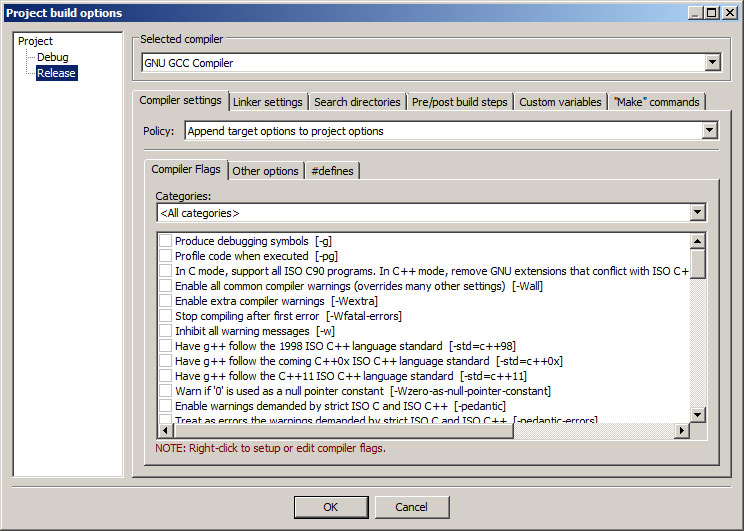
In Release/Linker settings/Link libraries add “sfml-graphics”, “sfml-window” and “sfml-system”.

In Release/Search directories/Compiler add “C:\SFML-2.3\include”.

In Release/Search directories/Linker add “C:\SFML-2.3\lib”. Click OK.

Create new C++ file and name it main.cpp


Add this code in main.cpp:
[cpp]
#include <SFML/Graphics.hpp>
int main()
{
sf::RenderWindow window(sf::VideoMode(200, 200), "SFML works!");
sf::CircleShape shape(100.f);
shape.setFillColor(sf::Color::Green);
while (window.isOpen())
{
sf::Event event;
while (window.pollEvent(event))
{
if (event.type == sf::Event::Closed)
window.close();
}
window.clear();
window.draw(shape);
window.display();
}
return 0;
}
[/cpp]

Click on Build/Build to build the project.


Go to C:\SFML-2.3\bin and copy all .dll files:

Go to C:\Project\bin\Debug and paste .dll files:

Go to C:\Program Files (x86)\CodeBlocks\MinGW\bin and copy:
libgcc_s_sjlj-1.dll
libstdc++-6.dll

Go to C:\Project\bin\Debug and paste:
libgcc_s_sjlj-1.dll
libstdc++-6.dll

Click on Project Application to see if its working:

If everything works you should see this:
